Since 2010 I’ve been a happy customer of Host Geek. I run many WordPress installations and refer all my web design clients to them.
Take a look at all their website hosting plans.
In this detailed review I’ll share my experience with Host Geek using their shared website hosting (what they call business website hosting, but very suitable to personal sites like mine), as well as giving you an inside look at the hosting environment and control panel, something not many reviews do. Also at the end of the post, there’s a special Host Geek discount coupon to get a really good deal on your hosting.
I’m a digital industry professional with over 10+ years experience, and in my job I deal with large scale hosting providers. So I know my stuff, I’ve shopped around and now am taking the time to tell you about Host Geek and why they’re so good. A few months ago I posted that Host Geek are the best WordPress hosts in Australia, now here’s the review to back it up.
My hosting setup
Since January 2011 I’ve been on Host Geek’s Savvy Geek plan, which costs $10 a month, but I pay yearly for a discounted $100 per year. Note that there are cheaper plans, starting from $5 a month or $50 per year.
The features of my current plan include:
- 1GB disk space
- 20GB bandwidth per month
- Unlimited add-on domains – this is one of my favourite features. It means you can host an unlimited number of domains, pointed to your server. At the moment I’ve got deanwormald.com and youmakethewebsite.com.au hosted here plus a few others for web design clients of mine.
- Unlimited subdomains
- cPanel for automated installation of software like WordPress, and easy hosting management.
- Comprehensive database support and lots of server side scripts.
- + heaps more.
How Host Geek compares to others
I’ve used a fair few different hosting providers such as CrazyDomains, HostGator, RackSpace and BlueHost. Host Geek is on par with price for most of these providers – but there are things that really stand out…
- Host Geek has great support – crucial if something goes wrong.
- Heavy restrictions don’t limit the performance of your hosting – meaning your site runs faster.
When I used CrazyDomains and HostGator, a response from their support to my question would usually take 72 hours. Host Geek respond to me within 24 hours, even on a weekend! I’ve found this really handy when building a site, as I don’t want to pause for 3 days, just for someone at tech support to help out with a 2 minute fix.
Other cheap web hosts put heavy restrictions on the performance of your site, and the resources it can use. This makes many aspects of websites, like sliding image carousels, simply impossible. Host Geek doesn’t have these restrictions.
Why I love Host Geek and have stuck with them
Initially I chose HostGeek because they are an Australian company with servers hosted in Australia. As well as this personal blog of mine, I make websites for local Australian businesses, and there are local SEO benefits to hosting your site in Australia.
I’ve stuck with HostGeek because it’s been a very hassle free experience, my sites have performed well and it’s really easy to manage WordPress.
Support is great
As mentioned above, the support is great, looking back over the 16 support tickets I’ve submitted, here’s a few interesting stats:
- Average response time was about 55 minutes!
- About 1/3 of the tickets were sent on a weekend.
- In 14/16 instances, HostGeek fixed the problem or answered my question with their first response – no additional back and forth messaging required.
- They do offer Live Help chat on the site and a contact phone number, but I’ve always used the online ticket system.
Easy to use control panel
I’m great at building website, SEO and information design. I’m not good at configuring hosting and that’s why I love using cPanel (the hosting control panel that comes with HostGeek). It’s fast and easy to do anything such as:
- Creating email accounts and checking them by webmail
- Making and restoring site/database backups
- Using File Manager to manage files instead of FTP
- Easily create and manage FTP accounts
- Check on disk space usage, error logs, usage stats by domain, etc
- Automatically install WordPress using Installatron
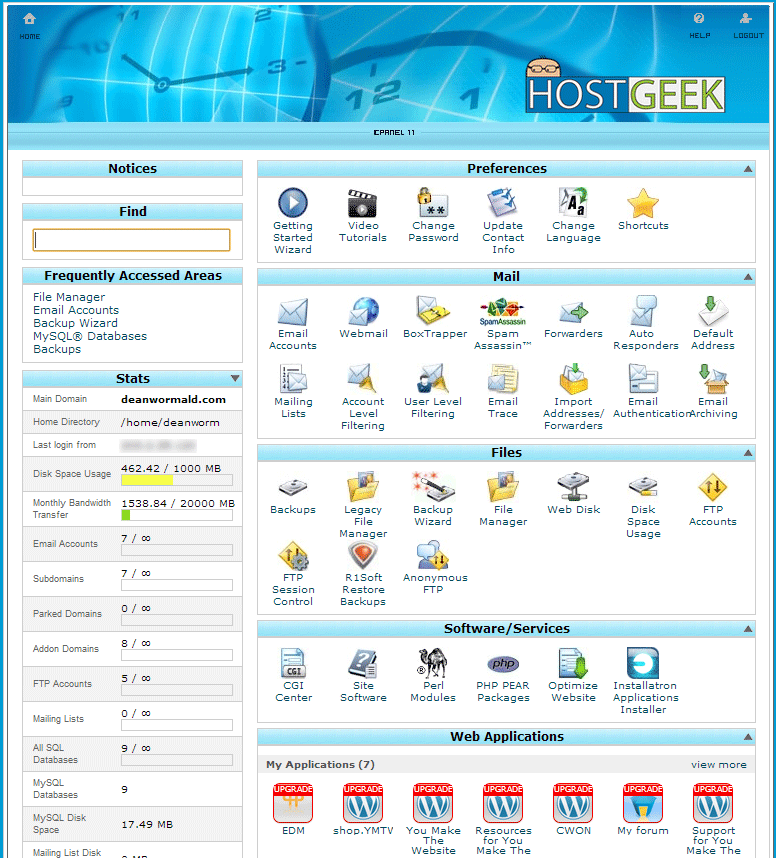
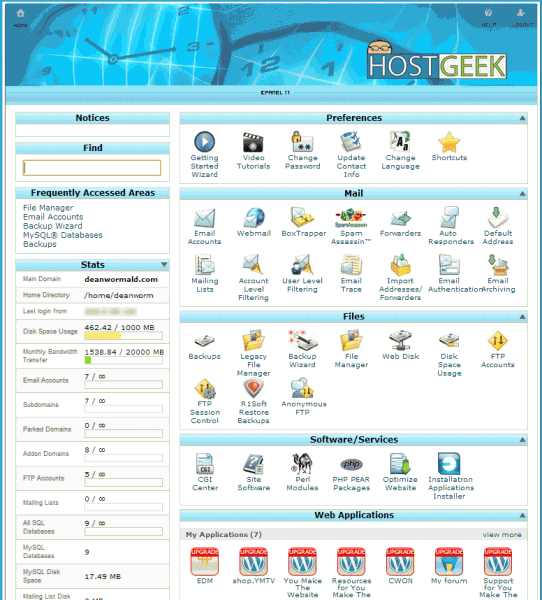
Here’s a look at cPanel for my hosting:
Automatic Application (including WordPress) Installation
If you’ve seen the instructions on how to install WordPress on share hosting manually, it looks quite daunting. I’ve never successfully done it myself. That’s why I love this feature of the control panel – it’s called Installatron.
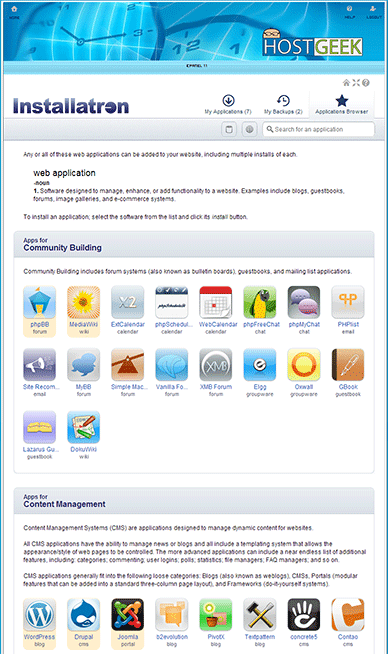
Installing WordPress is easy and fast, another one of my favourite things about HostGeek. To install WordPress, all you have to do is:
- Login to your hosting control panel.
- Click the Installatron icon.
- Find/search for WordPrses and click the icon.
- Click the Install this application button.
- Fill out the simple form (i.e. admin username and password).
- Then click install.
The Installatron system then automatically creates the directories needed, the database and then sends you an email with your login credentials.
Installatron will also email you when there is a new version of WordPress, making it easy to stay up-to-date with the software.
HostGeek website hosting rating
To give you a bit of an experience of my experiences, here’s a rating out of 10 for HostGeek and the others I’ve used:
- HostGeek: 8.5/10
- CrazyDomains: 3/10
- HostGator: 5/10
- RackSpace: 4/10
- BlueHost: 5/10
HostGeek discount code
Get 10% off hosting for life using the following code (be sure to follow the instructions for it to work):
- Click the button below to start browsing the hosting plans (link will open in a new window).
[button link=”http://deanwormald.com/visit/hostgeek/” type=”big” color=”green” newwindow=”yes”] HostGeek hosting plans[/button]
- From the home page, click Hosting
- Click on Shared Web hosting
- Click the sign up button under the hosting plan you’d like to buy
- Follow the prompts for your domain name and payment (strongly recommend buying your domain name at the same time, if you don’t already have one)
- Enter and validate the promo code: YM10
Conclusion
If you’re looking for cheap, local hosting with good support and an easy interface to install WordPress… then these guys are for you!
If you have any questions about don’t hesitate to ask me in the comments below.
thanks for the concise write-up, it was very informative.
I was considering using Telstra who fo $990 develop the site but you get slugged for monthly support.
Nice write up Dean,
Slick shared hosting with awesome support, can’t go wrong!
I have been using Amazon Web Services and its targeting a slightly different space but Elastic Beanstalk + their Relational Database Service has been super rad.
Keen to give hostgeek a crack for some projects too.